Guide
How Playita works
One panel, top to bottom. Then the widget, media keys, and settings.
Getting started
Playita runs on macOS 26 or later, Apple silicon or Intel. Music can come from Music.app, from folders on this Mac, or from an external drive. No subscription, and Music.app itself is optional.
- Install from the Mac App Store. Playita lives in the menu bar. No window, no Dock icon.
- Click the glyph. Allow access to your Music library if asked. Your playlists appear. Tap one.
- No Music.app? Tap Add music… under IMPORTED and pick a folder.
Quit from the right-click menu on the glyph, or from the bottom of Settings.
The panel
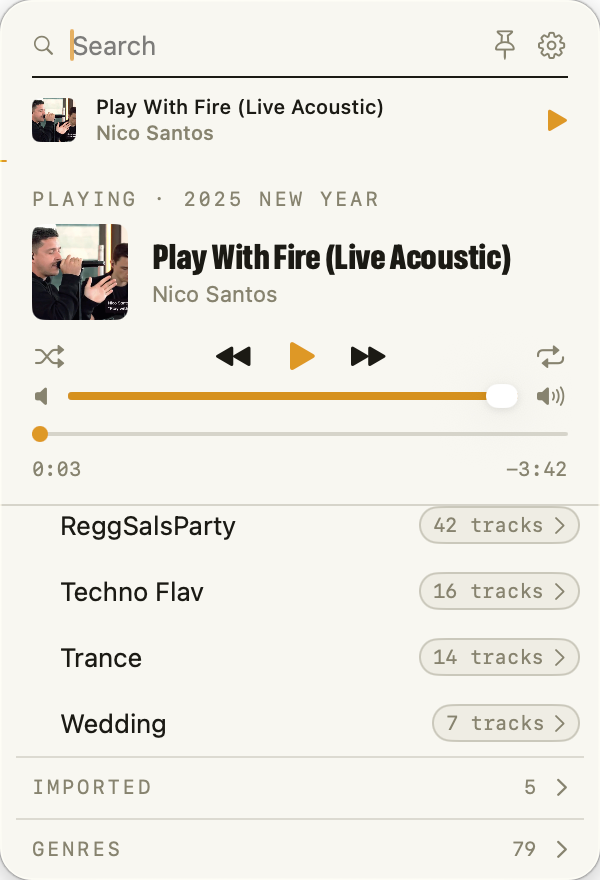
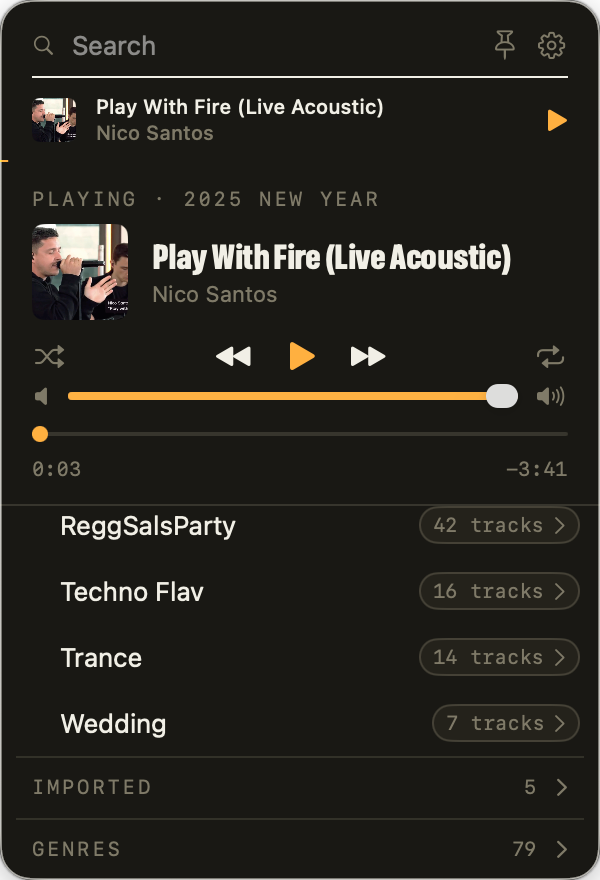
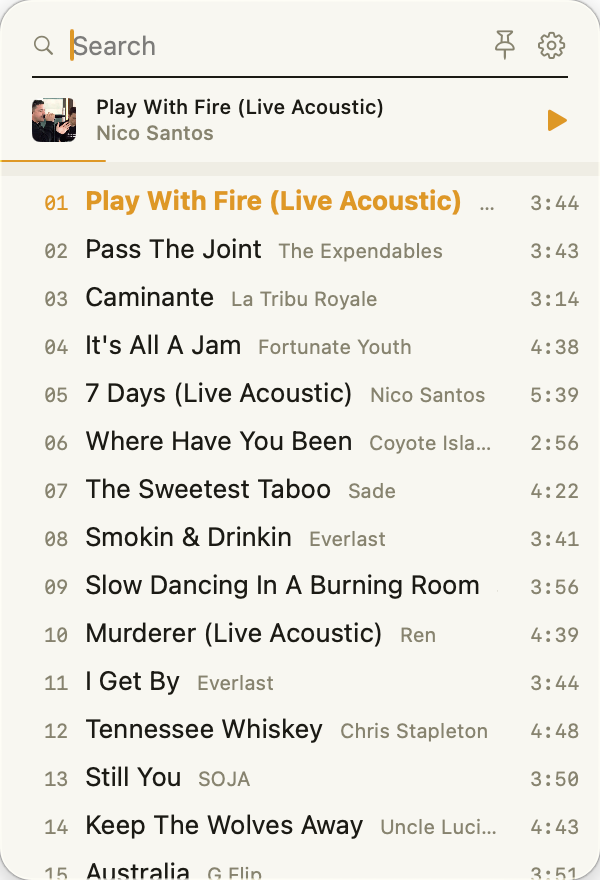
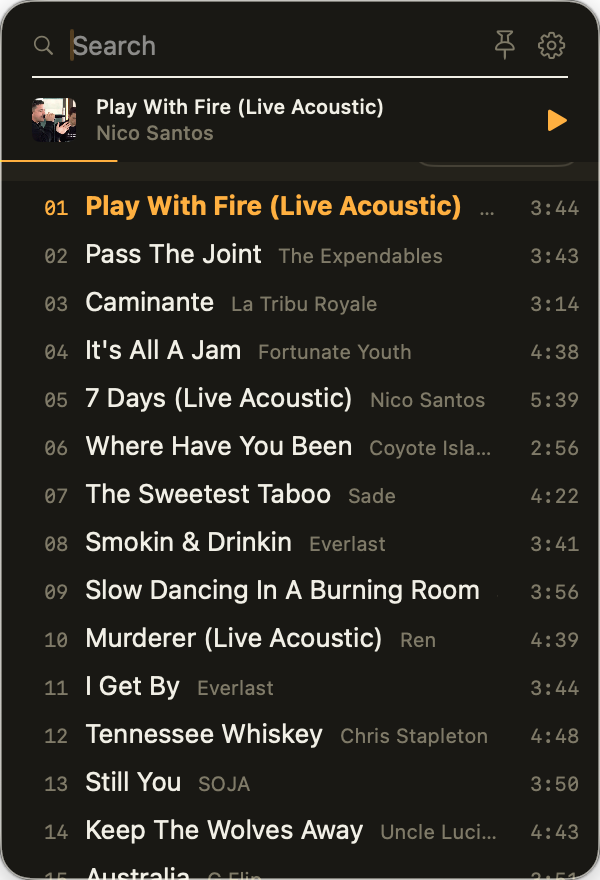
One column. The search field stays at the top. Everything else scrolls. Names play, capsules unfold, and the current song is always amber.
 1
2
3
4
5
6
1
2
3
4
5
6
- 1Search. Type to find playlists, songs, and genres. Return plays the top hit.
- 2Now playing. Artwork, song, transport, volume, scrubber. Folds into the strip above it as you scroll.
- 3Playlists. The name plays. The capsule unfolds the songs.
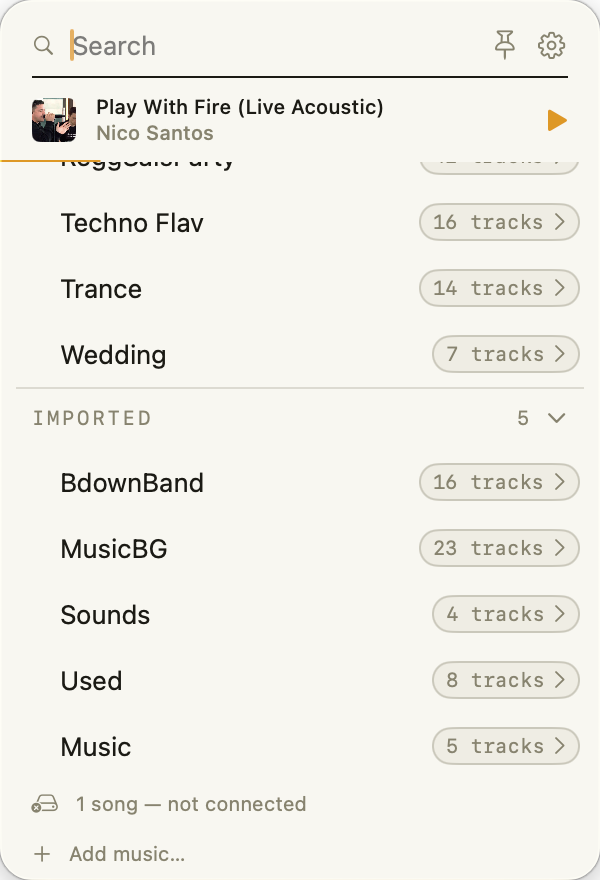
- 4Imported music. Folders and drives, after your playlists.
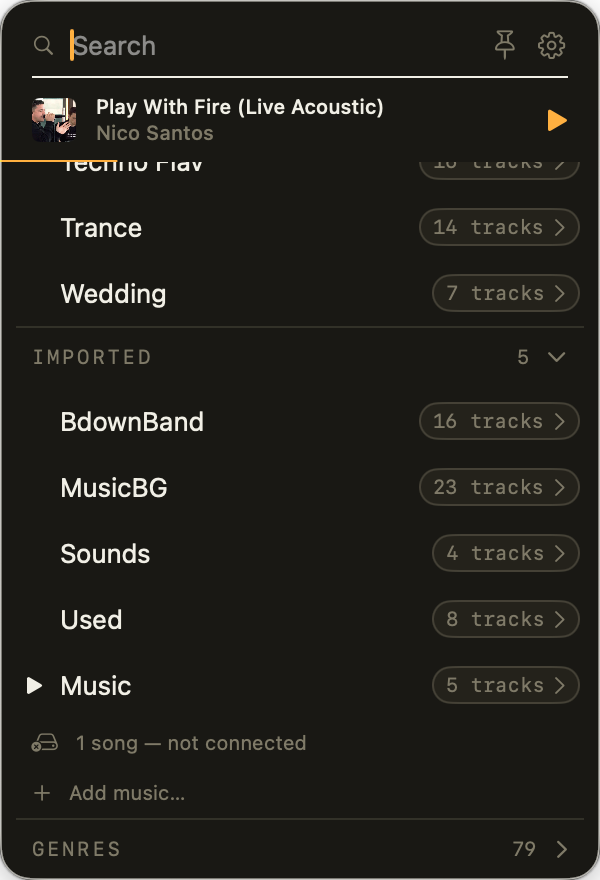
- 5Genres. Every genre, biggest first, at the very end.
- 6Gear and pin. Settings, and the floating widget.
Search
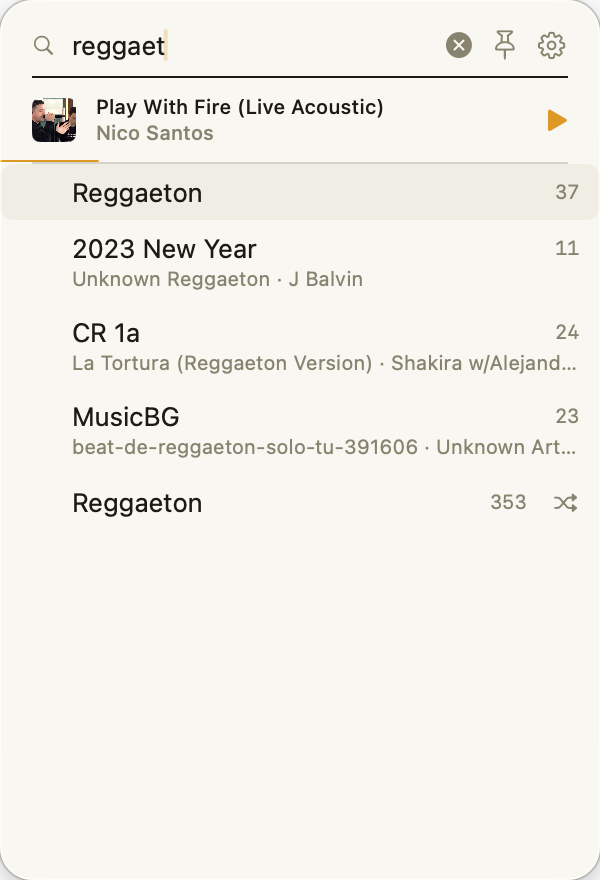
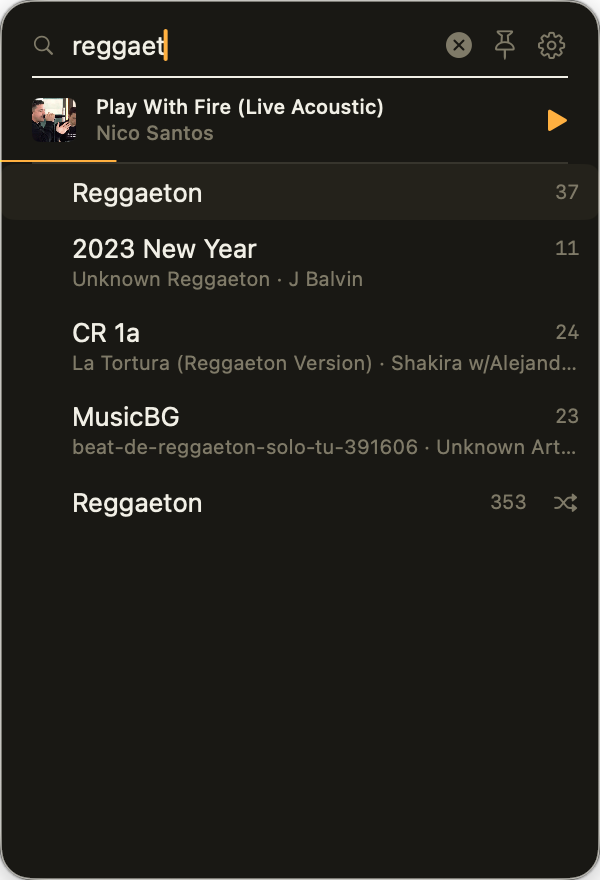
- Type. Playlists whose names match come first, then playlists holding a matching song, then genres.
- Return plays the top result. Tap a song result and its playlist starts from that song.
- Esc brings the column back. Searching never interrupts what is playing.
Now playing
- Play and pause is the amber button. Previous restarts the song after three seconds, otherwise it steps back.
- Shuffle and Repeat are gray until on, then amber.
- Volume is Playita's own, not the Mac's.
- Drag the scrubber to move within the song.
- Scroll down and the block folds into a strip. Tap the strip to unfold it.
Playlists
- Tap the name to play. Tap the capsule to see the songs. One playlist is open at a time.
- In an open playlist, tap a song to start there. The current song is amber.
- The playing playlist sorts to the top the next time you open the panel.
- Dimmed with a lock: an old copy protected iTunes purchase. Only Music.app can play it. Dimmed with a slashed cloud: an Apple Music song that is not downloaded.
- A new playlist in Music.app appears the next time you open the panel.
Imported music
- Tap Add music… and pick a folder or some songs, from this Mac or a drive.
- Each folder becomes a playlist. Single songs gather in Songs.
- Unplug the drive and its playlists dim. Plug it in and they return.
- Nothing is copied, and Music.app is not touched. Forget a folder in Settings.
- The pinned widget takes drag and drop too.
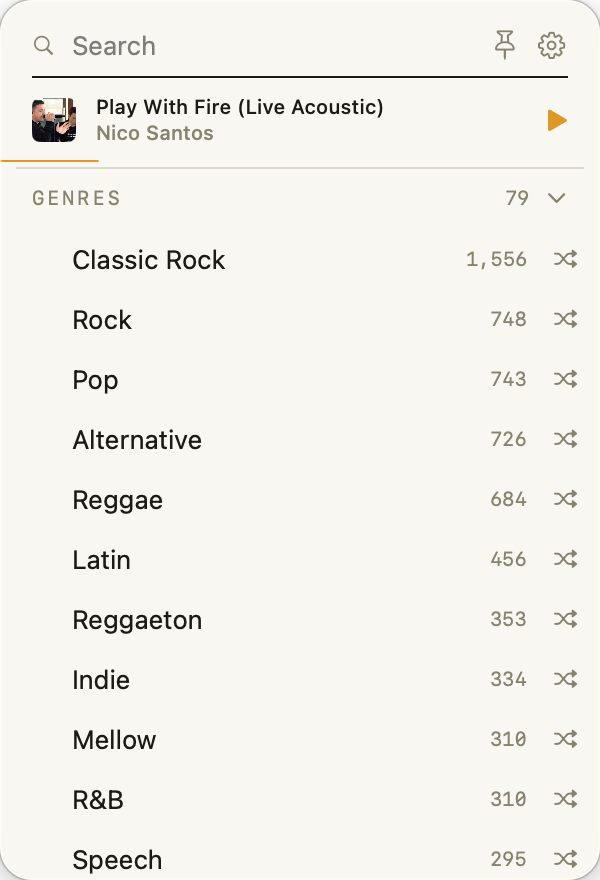
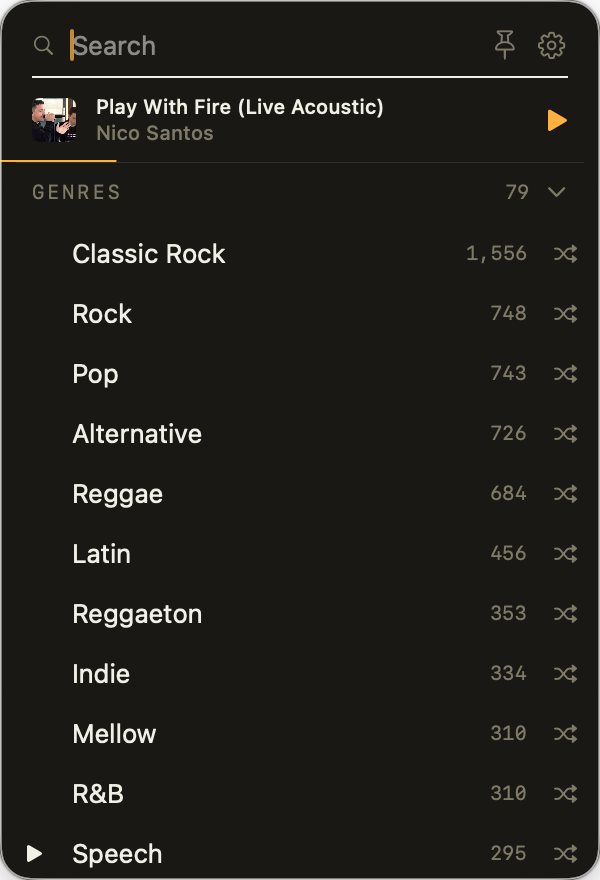
Genres
Tap GENRES to unfold every genre in your library, biggest first. Tap one and the whole genre plays shuffled, imported music included.
Gear and pin
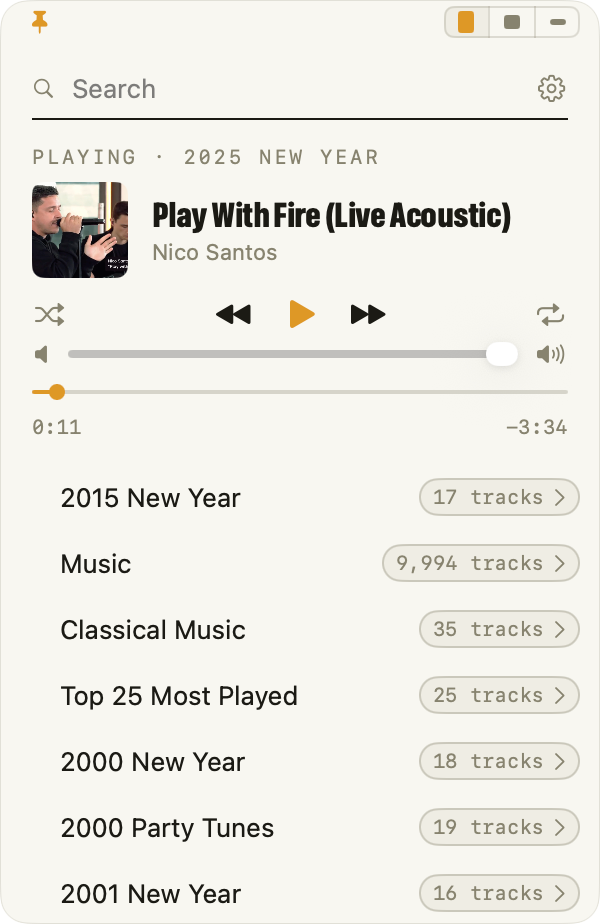
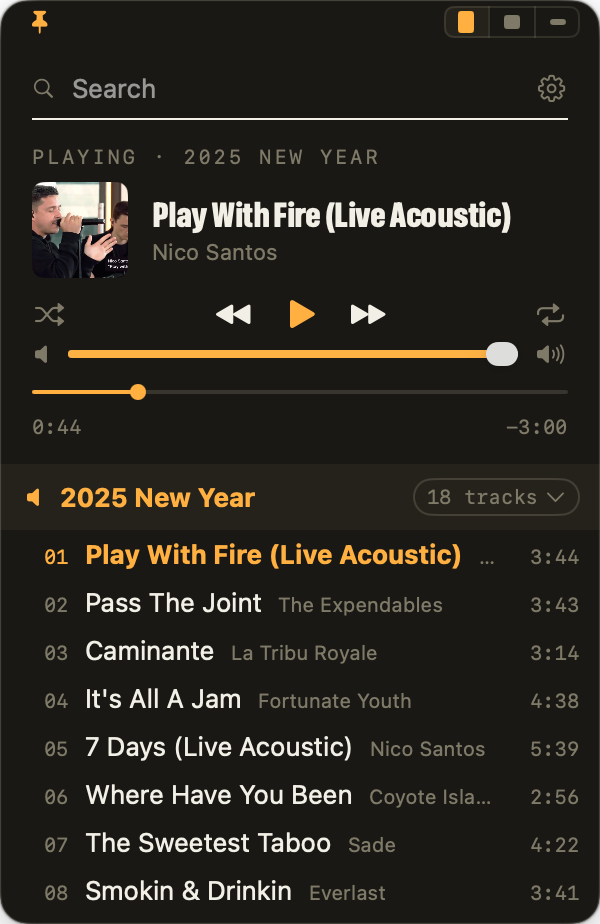
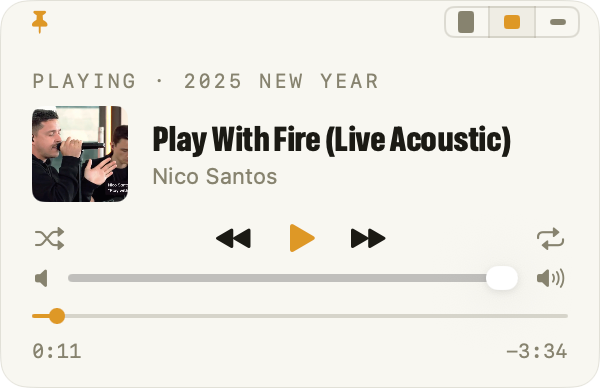
The gear opens Settings. The pin pops the panel out into the floating widget, and turns amber while it is out.
The pinned widget
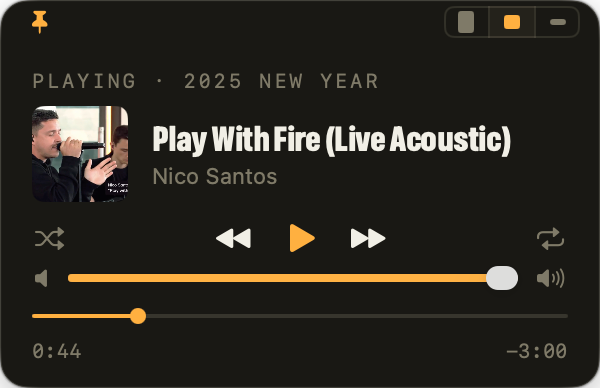
- Three sizes from the cells at the top right. Full is the whole panel. Compact is the player. Mini is one line.
- Drag it anywhere by its background. It stays put and never steals focus from what you are doing.
- Unpin with the amber pin. Drop folders or songs on it to add them.
- Playita remembers its place, size, and pinned state across launches. "Keep widget on top" is in Settings.


Media keys and Control Center
- Once Playita has played something, the keyboard's media keys, the Control Center tile, the lock screen, and AirPods control it. The panel can stay closed.
- macOS gives the keys to whichever app played last. Play Playita again and they come back.
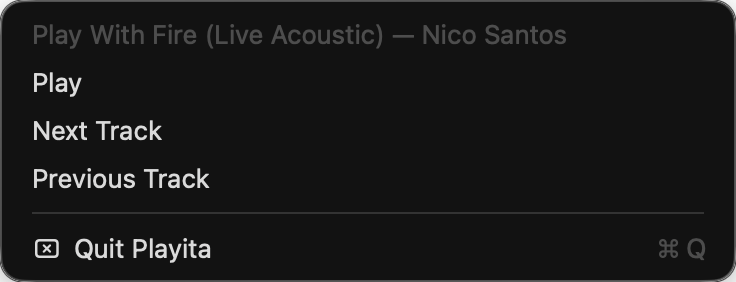
- Right-click the glyph for a small remote. Play or Pause, Next, Previous, Quit.
- Press play with nothing loaded and the "Open to" playlist starts.
Notifications
Turn on "Notify on track change" in Settings for a small banner with artwork on each new song. macOS asks permission the first time. Off by default.
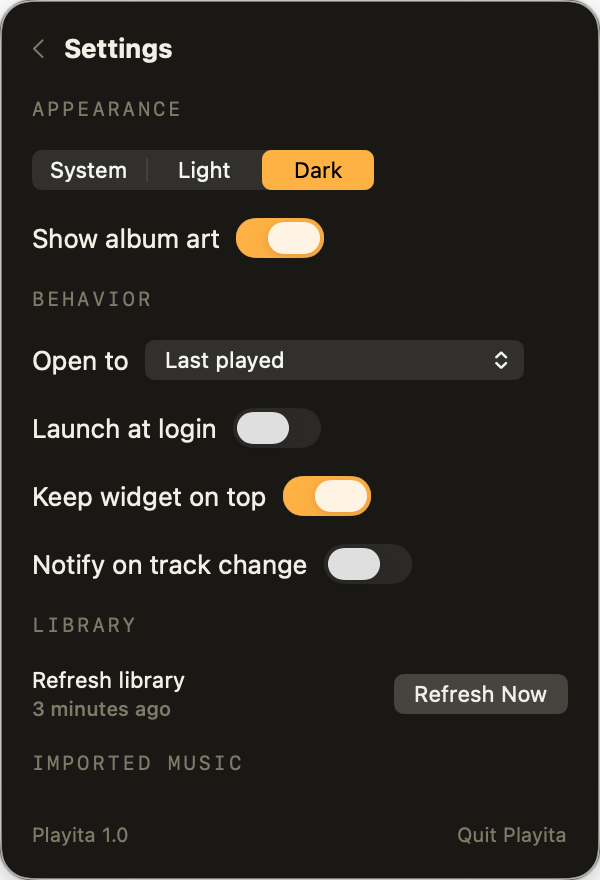
Settings
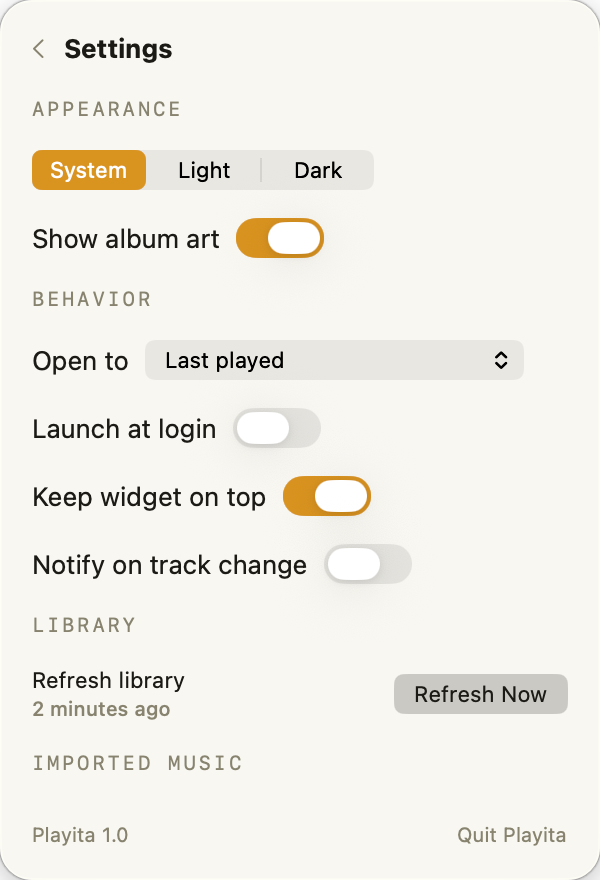
- Appearance. System, Light, or Dark. Album art on or off.
- Open to. What plays when nothing is loaded. Last played, or a playlist you pick.
- Launch at login.
- Keep widget on top. On by default.
- Notify on track change. Off by default.
- Refresh library. Happens on every panel open. Refresh Now if you cannot wait.
- Imported music. Your folders and songs, with ⊖ to forget one. Add music… lives here too.
Version and Quit are at the bottom.
Keyboard shortcuts
With the panel open and the search field empty.
The same keys work in the widget once you click in it. There is no shortcut to open the panel. macOS offers no clean way to give an app one.
Ready to try it?

Free · macOS 26 or later