Guide
Everything LinkListo does, in five minutes.
Getting started
LinkListo lives in your menu bar — there is no Dock icon and no window to manage. Click the menu bar icon and the popover opens. Click anywhere else and it gets out of your way.
- Click the + button (or press ⌘N).
- Paste a URL. The title and site icon fill themselves in.
- Press Save. Your link is one click away from now on.
Click a link to open it in its browser. The popover stays open so you can launch several in a row — if you'd rather it close after each one, turn on Close After Opening in Settings.
To quit LinkListo, right-click the menu bar icon and choose Quit.
Links
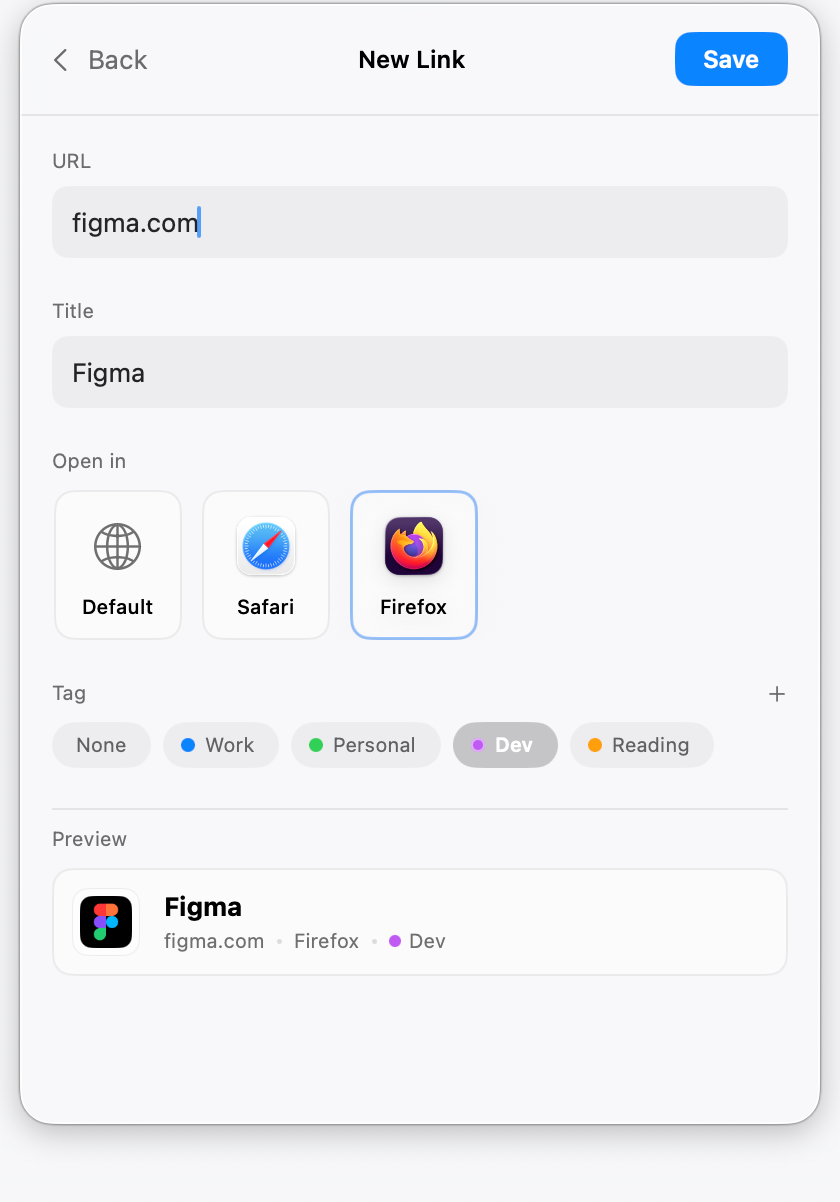
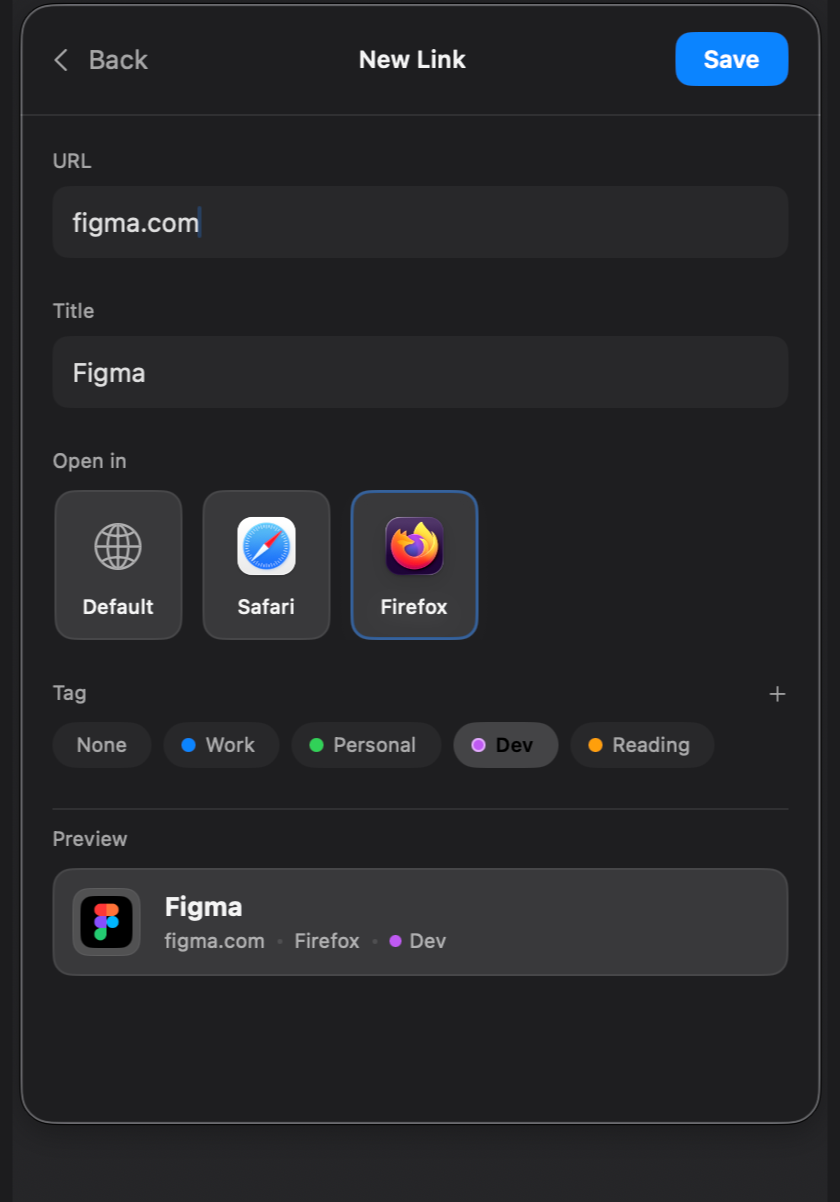
Every link has a title, a URL, a browser, and an optional tag. The editor shows a live preview of the card as you type.
Leave the browser on Default and the link follows the default browser you chose in Settings. Pick a specific browser and the link always opens there.
To change a link later, right-click it and choose Edit… (or select it and press ⌘E). The right-click menu can also open the link in any installed browser as a one-off, copy the URL, refresh a stale site icon, or delete the link.
To reorder the list, drag a link up or down — reordering works whenever no filter or search is active.
Browsers
LinkListo finds every browser installed on your Mac — Safari, Chrome, Firefox, Arc, Edge, Brave, and the rest. There are three levels of control.
- The Default Browser in Settings is used by every link you haven't assigned.
- Pick a browser in the editor and that link always opens there.
- Right-click a link and choose Open in… for just this once.
Keyboard shortcuts
Once the popover is open, you never need the mouse.
The selection follows your pointer, so the keyboard and the mouse never fight over which link is highlighted.
Backup and restore
Your links live in a single file on your Mac, and you can copy them out any time.
- Export Backup in Settings → Data saves every link and tag to a JSON file, wherever you choose.
- Import Backup restores from a backup file. Importing replaces everything currently in LinkListo. The app asks before it does.
The backup is plain JSON, so it's also an easy way to move your links to another Mac.
Settings tour
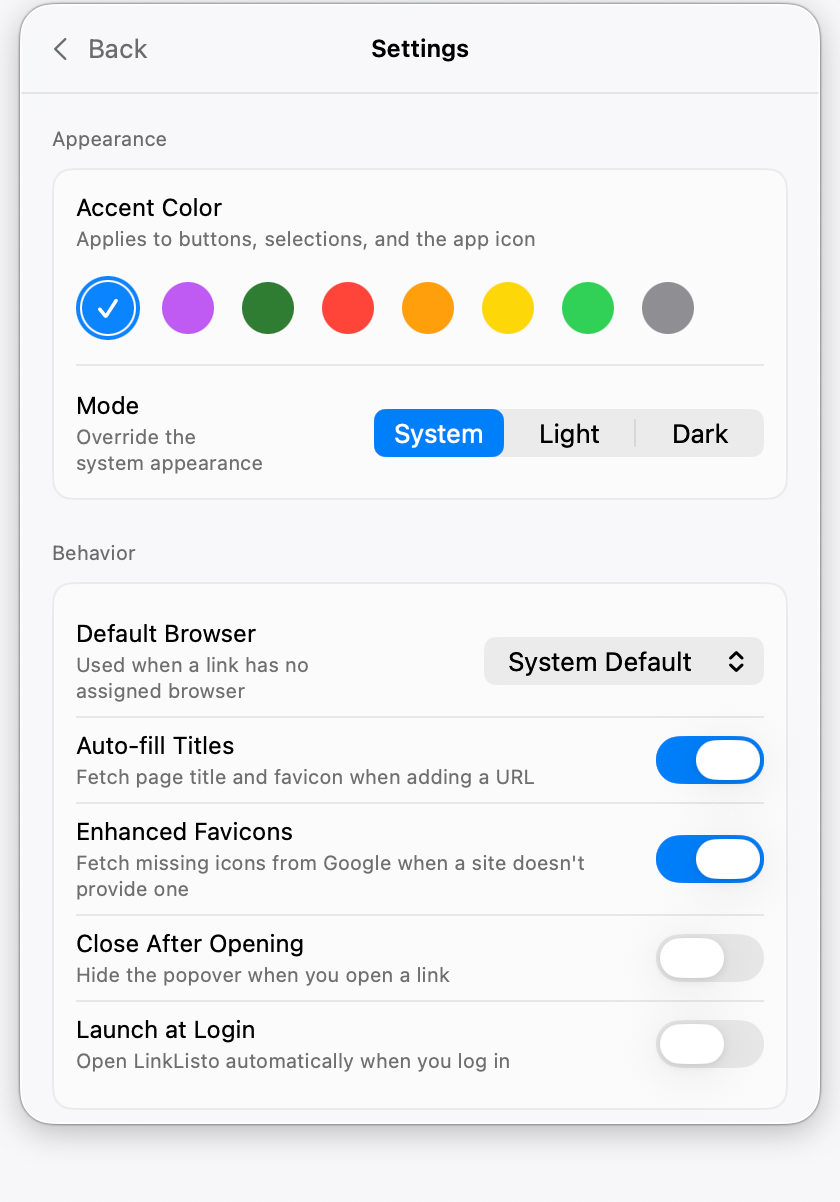
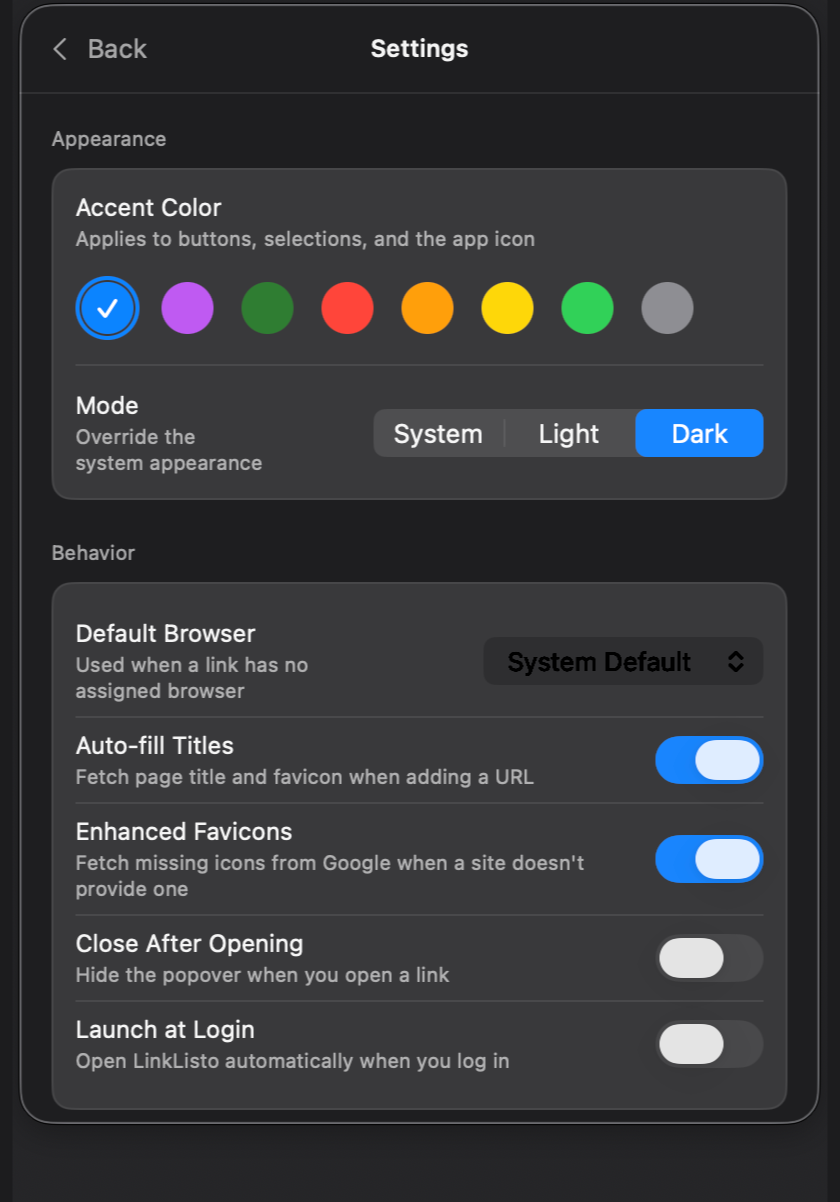
- Appearance is where you pick an accent color for buttons, selections, and the app icon, and choose System, Light, or Dark mode.
- Behavior holds the default browser and four switches. Auto-fill Titles fetches the page title and icon when you add a URL. Enhanced Favicons asks Google for an icon only when a site doesn't provide one, and with it off LinkListo never talks to Google. Close After Opening hides the popover when you open a link. Launch at Login opens LinkListo when you log in.
- Tags is where you add, rename, recolor, or delete tags.
- Data exports and imports backups.
- Tips & Shortcuts keeps the shortcuts listed above at hand inside the app.
Ready to try it?

Free · macOS 26 or later